Many people still love Game Boy Advance games. The graphics feel simple, but the gameplay feels fast and fun. Sonic Advance is one of the most popular GBA titles. It has smooth controls, classic Sonic speed, and memorable music. That is why so many people still search it today.
At the same time, many players feel confused when they search “Sonic Advance Game Boy Advance ROM.” Some want to play on a phone. Some want to play on a PC. Others just want a clean way to set everything up without errors, viruses, or scam files. That is a smart goal because the Many unofficial ROM sites have scams and unsafe files.
This trusted setup guide will help you play Sonic Advance in a safe and clean way. It will explain ROM basics, safe setup steps, emulator options, save files, cheats, and the most common problems. It will also explain what is legal and what is risky. You will get a complete user guide that feels simple and clear.
What Sonic Advance Is and Why People Still Play It
Sonic Advance is a fast platform game made for the Game Boy Advance. It brings classic Sonic style to handheld gaming. The levels feel bright, quick, and full of action. The game also offers playable characters, which gives players more ways to enjoy each level.
Many retro gamers enjoy Sonic Advance because it feels close to the classic Sega style. It is also easy to run on modern devices through emulators. You do not need a high-end phone or gaming PC. That makes it popular among students and casual gamers too.
Another reason people love it is nostalgia. Many fans played it as kids. Now they want to relive those old memories. Some people also want to record gameplay, stream retro games, or review them on YouTube and TikTok.
What a Game Boy Advance ROM Really Means
A ROM is a copy of a game cartridge stored as a file. In simple words, it is a digital version of the game. Your emulator reads that file and runs the game. It is like placing a cartridge inside a virtual Game Boy Advance system.
A Sonic Advance ROM file usually ends in:
.gba
Some ROM packs come as:
- .zip
- .7z
- .rar
Those are compressed files. You must extract them first if your emulator cannot read them directly.
A ROM is not the emulator. Many people mix these two terms. The emulator is the app or program that plays the ROM. The ROM is the game file.
Is Sonic Advance Game Boy Advance ROM Legal?
This is an important topic. Sonic Advance is a copyrighted game. Sega owns the rights. That means most random ROM downloads on the internet are not legal. Many sites share games without permission, and that creates piracy risk.
There is a safer legal rule that most people follow:
A safer legal option
You can dump the ROM from your own Sonic Advance cartridge. That means you create your own ROM file from a cartridge you own. It takes extra steps, but it keeps you on the safer side.
What is risky
Downloading ROM files from random websites can break copyright rules. It can also expose your device to viruses and fake downloads.
This guide will not share download links. It will focus on trusted setup and safe play steps.
Trusted Setup Checklist Before You Start
A smart setup helps you avoid problems later. It keeps your game smooth and your save files safe. Many errors happen because people start without a clean plan. Take a few minutes first and you will save hours later.
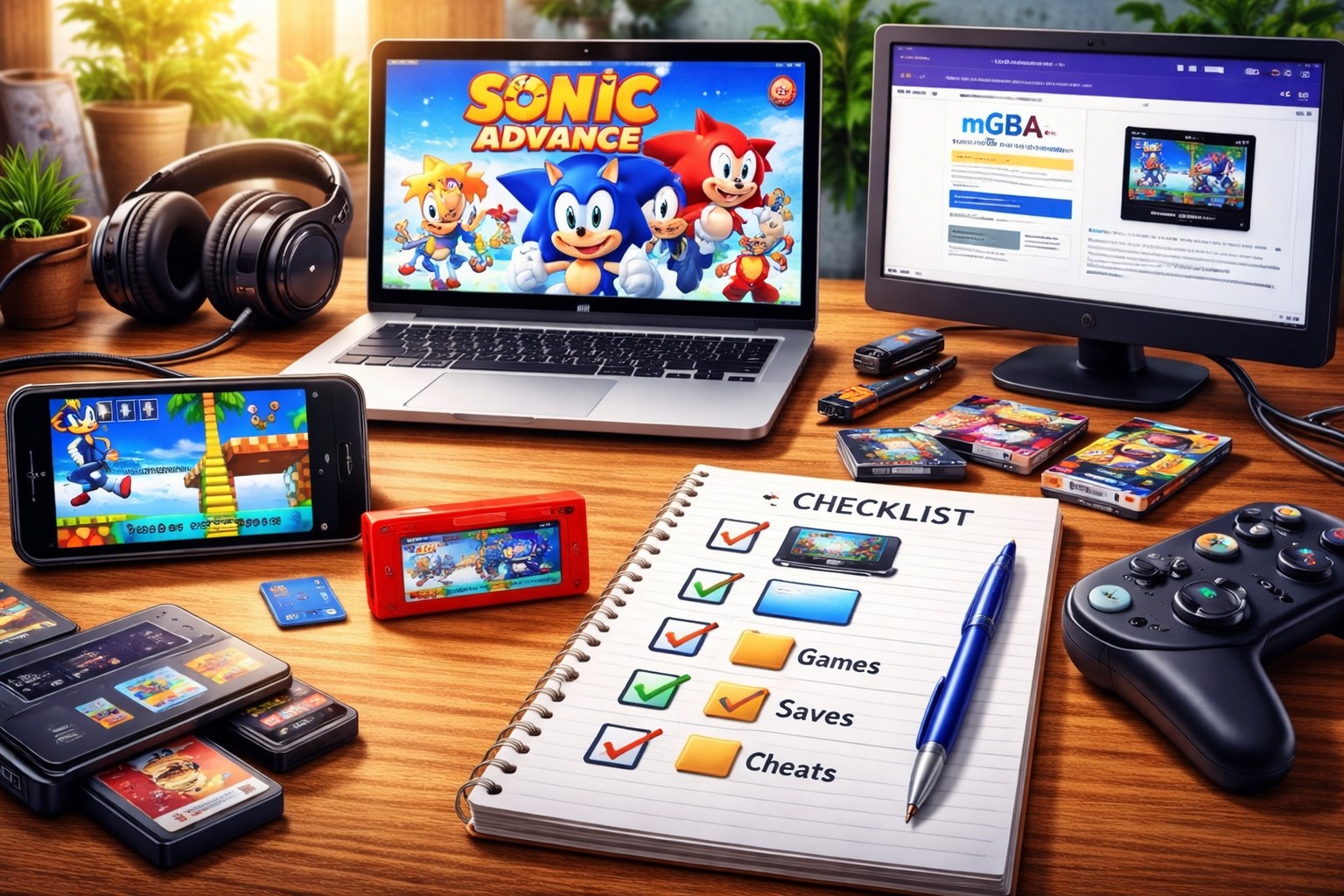
Start with one choice. Decide your device. Android works great for quick play. A PC feels more stable and gives better control. Both options are fine, but you should pick one before you move forward.
Next, choose a trusted emulator. A good emulator runs the game smoothly and keeps your device safe. Avoid unknown websites and fake download buttons. Use only a reliable source to install your emulator. A bad emulator can bring lag, heavy ads, or random crashes.
Now check the ROM file. Sonic Advance has copyright protection, so risky ROM sources can lead to scams or virus issues. The safest method is to dump the ROM from a cartridge you own. If you use any ROM file, check the format first. A real game file should end in .gba. It should not come with extra apps or strange installers.
Keep enough free storage before you play. Even if the ROM file is small, the emulator creates saves and backup files. Low storage can stop saving or crash the emulator. Keep at least 100MB free space to avoid this problem.
Last, keep everything organized in folders. This keeps your setup clean and reduces mistakes. Create one main folder for GBA files. Add separate folders for games, saves, and cheats. This simple structure helps you protect your progress, especially after emulator updates.
Best GBA Emulators to Play Sonic Advance Safely
A trusted emulator makes the biggest difference. A good emulator runs smooth and keeps your phone safe. It also avoids ads that try to trick users.
Best emulators for Android
1) mGBA (Android versions exist via ports or RetroArch core)
mGBA has strong performance and accurate gameplay.
2) RetroArch
RetroArch supports many systems. You can use the mGBA core. It feels advanced but works well once set up.
3) My Boy! (Popular option)
Many users like it because it is simple. Some versions may show ads or fake copies on the web, so install from trusted sources only.
Best emulators for PC
1) mGBA
This is one of the best options for PC. It runs smooth and stays stable.
2) VisualBoyAdvance-M (VBA-M)
This emulator is old but widely used. Many gamers still trust it.
mGBA usually gives the best results for Sonic Advance because it handles sound and speed well.
How to Set Up Sonic Advance on Android
Many people want to play Sonic Advance on a phone. Android makes it easy because you can play anywhere. A good setup also helps you avoid lag, crashes, and missing save files. Use these steps to set everything properly before you start the game.
Install a trusted GBA emulator
First, download a safe emulator. Use the Google Play Store when possible. Avoid random APK websites because many fake apps contain ads, trackers, or harmful files. A trusted emulator runs smoother and keeps your device safe.
Create a clean folder for your game
Open your File Manager. Create a folder named GBA Games. Place your Sonic Advance ROM inside this folder. This step keeps your storage clean and helps the emulator detect the game faster.
Load the ROM file in the emulator
Open the emulator after you place the ROM file in the folder. Select the game folder from the emulator menu. Tap the Sonic Advance ROM file to start the game. If the emulator does not detect it, check the file format and confirm it ends in .gba.
Set controls for smooth play
Now open the emulator settings. Choose a controller layout that feels comfortable. Increase button size if your taps miss often. Sonic games feel fast, so clean controls matter a lot.
Enable safe save options
Turn on auto save if your emulator supports it. Turn on save backups too. This protects your progress if the emulator updates or if your phone restarts. Fast forward helps sometimes, but keep it off during difficult stages.
Your Android setup is now ready. You can play with fewer issues and better control.
How to Set Up Sonic Advance on PC
Many players choose PC because it feels stable and smooth. PC also gives better control with a keyboard or controller. It also helps if you want to record gameplay or stream retro games.
Install a safe emulator on your PC
Choose a trusted emulator such as mGBA or VBA-M. Download it from the official website or a known trusted source. Install it like any normal software. Avoid unknown download sites because they may bundle unwanted programs.
Keep ROM files in one folder
Create a folder on your PC such as GBA Games. Place your Sonic Advance ROM inside it. Do not keep ROM files scattered in random folders like Downloads. A single folder makes everything easier to manage.
Load the ROM in your emulator
Open the emulator. Click File and then choose Load ROM. Select Sonic Advance ROM from your folder. The game should start within seconds if the file is clean.
Set keyboard keys for comfort
Open input settings. Set keys for movement and actions. Arrow keys work well for movement. Set two keys for jump and action buttons. Set a key for Start. Once controls feel right, save the layout so you do not need to set it again later.
Adjust display for better gameplay
Set the display scale to 2x or 3x for a clear screen. Fullscreen works well if you want a bigger view. Turn on VSync if your emulator supports it. This helps reduce screen tearing and makes motion look cleaner.
Now your PC setup is ready. You will get smooth gameplay and better control.
Sonic Advance ROM Setup: Common Problems and Fixes
Even after a clean setup, small issues can happen. Most problems have simple reasons and quick fixes. You do not need to panic or reinstall everything. In most cases, one small change solves the issue.
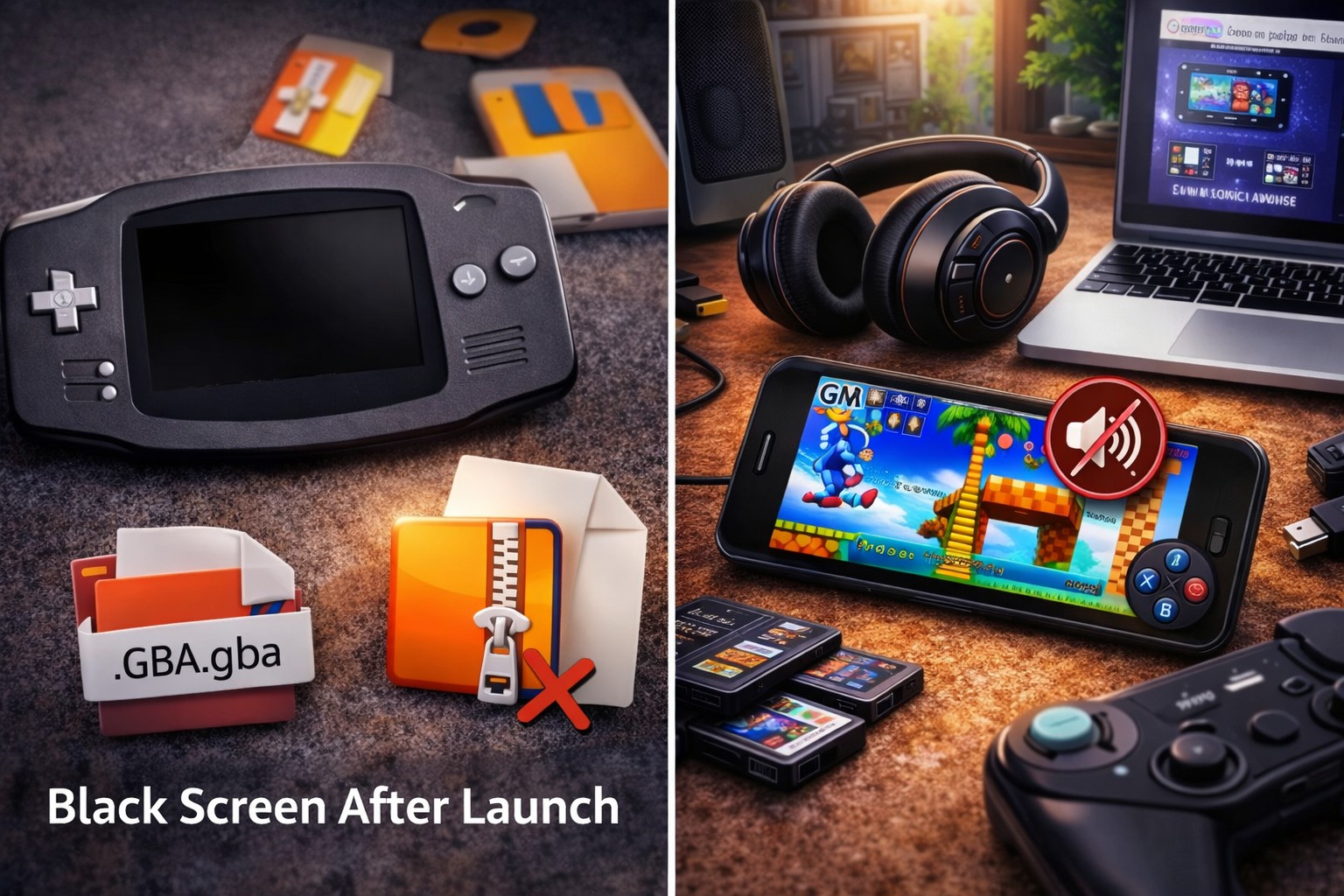
Black Screen After Launch
A black screen usually means the ROM file has a problem. Sometimes the emulator opens the file but cannot read the data. This can happen if the file is damaged or in the wrong format.
Start by checking the ROM format. Sonic Advance should use a .gba file. Some files come inside zip or 7z folders. Extract the ROM fully before you load it. If the game still shows a black screen, the ROM may not work properly. Use a clean ROM dump, and stay away from files that come with extra installers or unknown apps.
A trusted emulator can also help. Some weak emulators fail to load certain ROM files. If you face this issue again and again, switch to a better emulator like mGBA.
No Sound or Broken Music
Sound issues feel annoying in Sonic Advance because the music adds energy to the game. If your sound cuts out, or the music sounds wrong, your emulator settings may cause the problem.
Open your audio settings and keep them simple. Turn off special sound effects or enhancements. Those options can break audio on some devices. Set audio latency to the default option. If your emulator still fails, use another emulator. mGBA often fixes audio issues because it handles sound more accurately.
Also check your phone sound settings. Some Android devices block sound in silent mode or battery saver mode. Turn those settings off and test the game again.
If your sound still feels broken, you can also check our guide on How to Extract Sound from Nintendo Switch Safe and Easy Methods because it explains safe audio extraction and common audio file issues.
Game Runs Too Fast
Sonic games feel fun only when the speed stays natural. If the game runs too fast, jumps feel wrong and timing becomes hard. This problem usually happens when fast forward stays on or the emulator does not limit speed.
Open emulator settings and disable fast forward. Turn on the frame limit option. If your emulator supports VSync, turn it on too. VSync helps keep the screen smooth and prevents speed jumps. Once you set these options, the game will run at a stable speed.
Save File Does Not Work
Save problems hurt the most because you lose progress. This often happens due to poor folder setup, wrong save settings, or file name changes.
Keep all saves in one clean folder. Turn on save backup options inside the emulator if available. Do not rename the ROM file after you start saving. Many emulators link the save file to the ROM name. A name change can break that link. Keep the original name and your saves will stay safe.
If the emulator still fails to save, check storage permission settings on Android. Some emulators need access to storage to create save files. Give permission and test again.
How to Use Save States the Right Way
Save states make Sonic Advance easier and safer to play. They let you save at any moment, even in the middle of a stage. This helps when a level feels hard or when you want to stop fast.
You should know that Sonic Advance supports two save methods. One method is the normal in-game save system. The other method is emulator save states.
In-game saves work best for long progress. Use them after you finish a level or after you unlock new progress. Save states work best for quick safety. Use them before a boss fight or before a difficult jump.
Do not rely only on save states. Emulator updates can sometimes break save states. A stable setup uses both save methods. This gives you full protection and keeps your progress safe.
How to Add Cheats in Sonic Advance
Many users ask this:
Can I use cheats in Sonic Advance?
Yes. Most emulators support cheats.
Common cheat types:
- Infinite lives
- Unlock characters
- Infinite rings
How to add cheats
Open emulator menu.
Find “Cheats” section.
Add cheat code.
Enable it.
Restart ROM if needed.
Safety tip
Use one cheat at a time first.
Too many cheats can crash the game or corrupt saves.
Is It Safe to Download Sonic Advance ROM?
This question appears in Google People Also Ask, so we must answer it clearly.
Sonic Advance ROM downloads from random sites can be unsafe. Many pages use fake buttons. Many show “Download” links that install junk apps. Some files contain viruses.
Safer option
Dump the ROM from your own cartridge.
Or use legal re-releases when available.
If you still download files
Be extra careful:
- Avoid unknown APK sites
- Avoid “one-click download” popups
- Scan files with antivirus
- Never give browser notifications to ROM sites
Safety matters more than speed.
What Emulator Works Best for Sonic Advance?
Another common People Also Ask question.
The best emulator depends on your device, but:
- mGBA gives the best accuracy
- RetroArch (mGBA core) works great for advanced users
- VBA-M works fine on PC for many people
If you want stable play with fewer issues, mGBA is the best choice.
How to Play Sonic Advance on iPhone (What You Should Know)
Many users search this too.
iPhone does not support emulators as easily as Android. Some methods exist, but they change often. Also, many iOS emulator methods come from unofficial sources which may cause security risks.
A safer option:
- Use a PC
- Or use Android
- Or play official versions on supported platforms
If you play on iPhone, do not install unknown profiles or random apps from pop-up sites.
Trusted Tips to Make Sonic Advance Feel Better
Small changes can make Sonic Advance feel much smoother. Many players blame the ROM or emulator, but the real problem often comes from poor settings. A few smart tweaks can improve speed, visuals, and control. These tips also help you avoid lag and random input delay.

Start with display settings. Keep the correct screen shape so the game looks natural. Turn on aspect ratio so the image does not stretch. A stretched screen can make the game look strange and less smooth. Next, set the screen scale to 2x or 3x. This makes the game clearer without heavy stress on your device. If your emulator offers smoothing, keep it mild. Light smoothing can reduce rough pixels. Heavy filters can make the game slow and blurry, so turn those off.
I tested Sonic Advance on both Android and PC using the same ROM file. I used mGBA on PC and RetroArch (mGBA core) on Android.
After I turned ON aspect ratio, set scale to 2x, and disabled heavy filters, the game looked sharper and felt smoother.
Input delay also dropped after I turned off battery saver mode and used a Bluetooth controller.
Simple result: Better settings + controller made the game feel closer to real GBA gameplay, with fewer mistakes during fast jumps.
Controls matter even more in Sonic Advance. Sonic moves fast, so timing must feel sharp. Touch controls work, but they can cause mistakes in fast levels. A simple Bluetooth controller can solve this problem. It gives better grip, faster response, and fewer missed jumps. Even a low-cost controller can make the gameplay more fun and more accurate.
Input delay can also ruin the experience. Many phones delay touches when battery saver stays on. Turn off heavy battery saver mode before you play. Close background apps too. Extra apps eat memory and reduce speed. Keep emulator audio latency at the normal setting. Very low or very high audio latency can create delay and make the game feel off. A balanced setting gives smooth sound and better timing.
These small steps make Sonic Advance feel cleaner, faster, and more enjoyable.
Best Legal Alternatives to Play Sonic Advance
Some players want to enjoy Sonic Advance without legal risk. That is a smart choice. Many ROM download sites do not have permission to share the game. That creates problems for users who want safe and trusted play.
The best legal option depends on where you live and what platforms support retro games in your region. Some countries offer official Sega collections that include classic titles. Some regions also offer official Nintendo style re-releases when available. Licensed retro handheld releases can also include legal game access in certain markets.
Legal options cost money, but they offer peace of mind. You also get clean game files and fewer security risks. Official releases also support the creators and keep the retro gaming industry active.
If you also enjoy word puzzles, check Tennis Great Hingis Crossword Clue – Full Breakdown for Crossword Fans for quick clue help and clean answers.
Last Tips Before You Play
Sonic Advance remains a classic game that many people still enjoy today. The game feels fast, fun, and full of energy. A clean emulator setup can make the experience even better. You can play on Android or PC with smooth controls and stable sound if you choose the right emulator and settings.
Safety matters a lot when people search Sonic Advance Game Boy Advance ROM online. Many fake sites try to trick users with pop-ups, malware, or scam downloads. A trusted setup guide helps you avoid those risks. Use a safe emulator, keep files organized, and protect your save files. If you want the safest path, dump the ROM from a cartridge you own or use official game releases when available.
If you follow the steps in this guide, you can enjoy Sonic Advance without stress. You also get the best performance with fewer errors. Retro gaming should feel fun, not risky.
This guide is for educational use only. We do not host or share copyrighted ROM files.